Your dashboard
The dashboard is the first page after you sign in. It answers one question — what needs you next — and how its lists are sorted and cut is up to you.
Two widgets do most of that work — Projects and Ideas — and each one shows a slice of its list, not the whole thing.
What the widgets show
Projects shows the videos you are making, as cards. Ideas is the inbox: a field to jot an idea down and the list under it, where status, priority and project are changed right in the row. The widget title opens the full list when you need everything. How ideas are written and worked through is in Ideas.
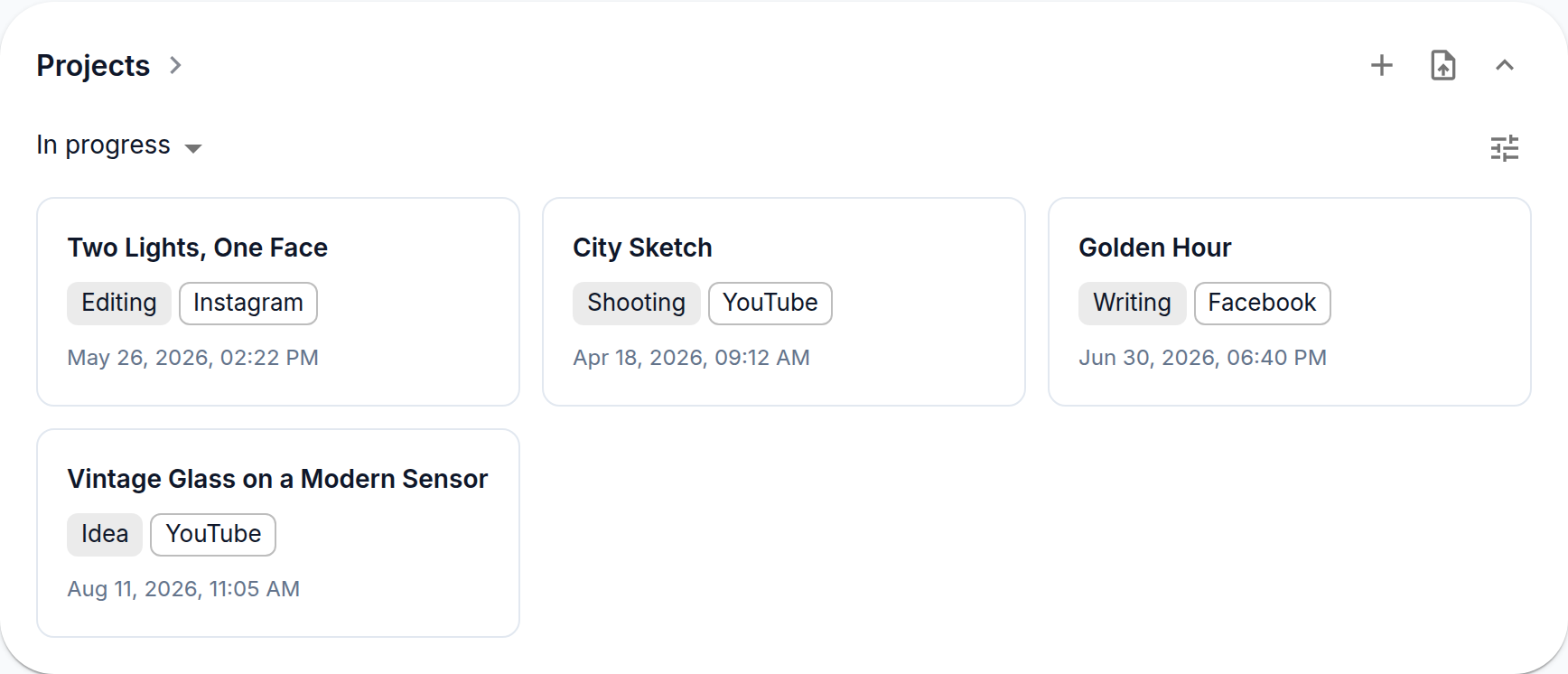
Above each list sits a small bar: the filter on the left, how many are shown on the right, and the view button that sets the order and the number of cards.
Order
The order is picked from a short list of presets.
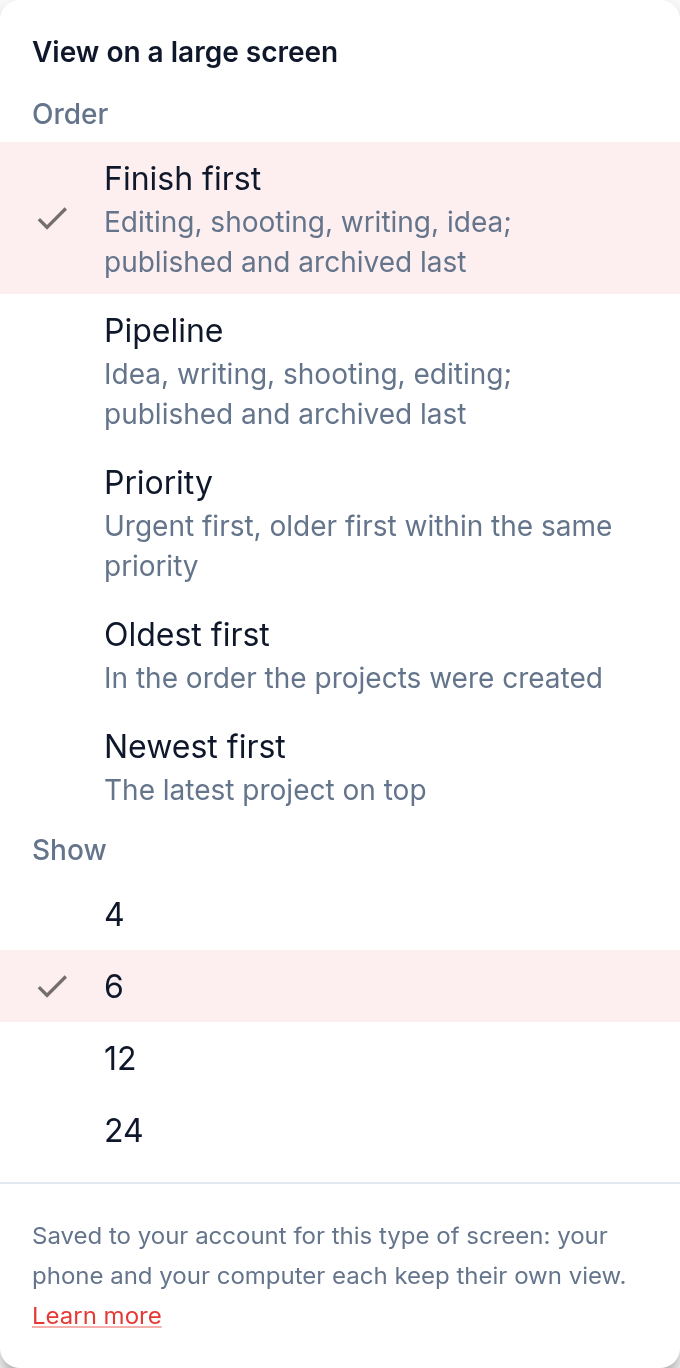
For projects:
- Finish first — the default, by project status. Editing, then shooting, then writing, then ideas; published and archived at the end. The video closest to release comes first, and a project you have just created goes to the back instead of pushing started work off the screen. Within a stage, higher priority first, then the older project.
- Pipeline — the same stages the other way round: idea, writing, shooting, editing.
- Priority — urgent first, older first within the same priority.
- Oldest first and Newest first — by the date the project was created.
For ideas:
- Inbox — the default. New ideas first, then those you are considering, then approved ones; the newest on top within each. An idea you have just written down stays in sight, so it gets reworked and turned into a project instead of sinking to the bottom.
- Priority, Oldest first and Newest first work as for projects.
Filter
In progress is the default. For projects it hides published and archived ones, for ideas — rejected and archived. All shows everything, and below those you can pick a single status.
If the filter leaves nothing, the widget says so and offers Show all — an empty widget never means the work is gone.
How many to show
Pick how many cards or rows a widget shows. When there are more than fit, the bar says how many you are seeing out of how many there are; the widget title opens the full list.
Phone and computer keep their own view
The view is saved to your account, so it follows you to another browser or device. But it is saved separately for two kinds of screen: a phone (and a small tablet held upright), and a large screen — a laptop, a monitor or a big tablet.
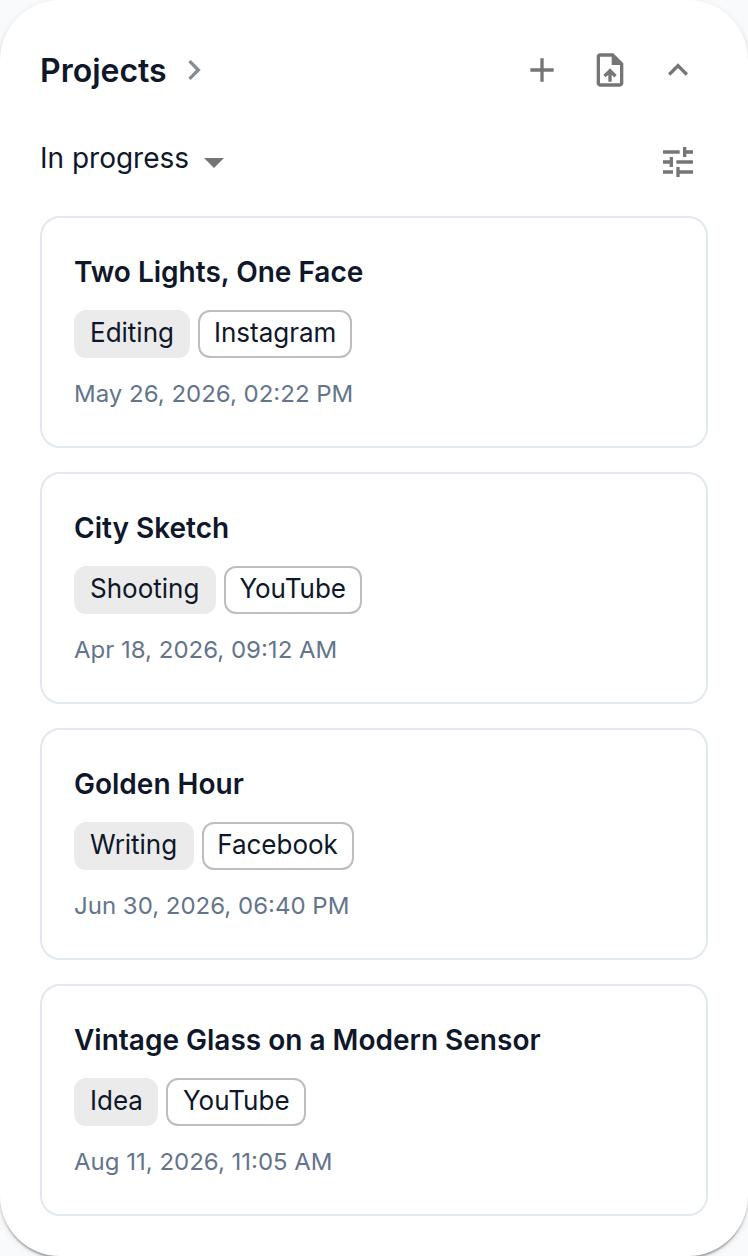
That is on purpose. On a phone you usually work on the go, often with fresh ideas, and there is room for fewer cards; at a desk it is the other way round. So choosing "Newest first, 4 cards" on your phone leaves your laptop as it was, and the other way round. A phone you have never set up starts from the phone defaults, not from what you picked on the laptop.
The view menu always says which screen it is setting: "View on your phone" or "View on a large screen". If you turn a tablet or narrow a browser window, the app may switch from one kind of screen to the other — and the widgets switch to that screen's view with it.